
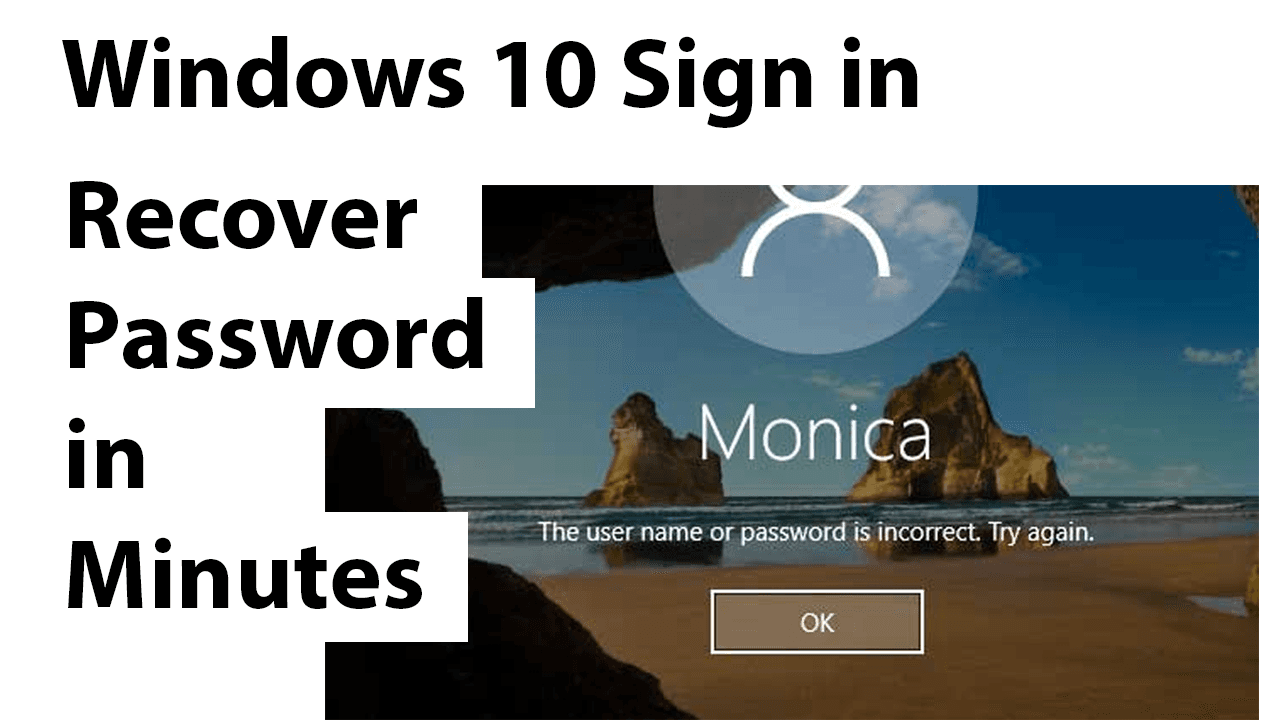
How to Sign In to Windows When You Forget Your Password
April 21, 2023

Jayson Canete
Forgetting your Windows password can be frustrating, but there's a way to regain access to your account without having to reinstall the operating system.
Computer Hacks
Forgetting your Windows password can be frustrating, but there's a way to regain access to your account without having to reinstall the operating system. In this blog post, we'll guide you through the process of using a bootable USB drive to access the system drive of your computer and rename files to trick Windows into allowing you to change the password. Follow these steps to regain access to your account and get back to using your computer.
- Get a USB Drive stick and make it a bootable with windows 10
- Insert it in Computer
- Before the computer boot, press F12 or F10 (Depending on your computer)
- When the boot menu is open, select your USB drive with bootable WIndows 10 on it.
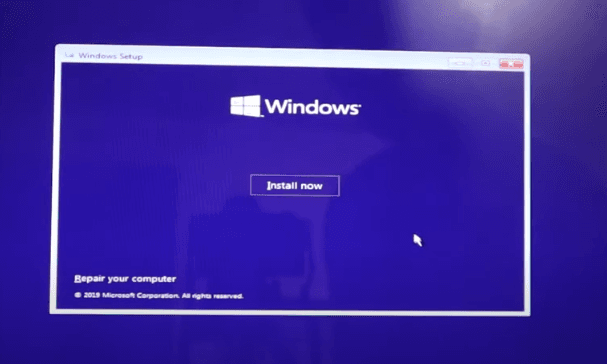
- Select Repair this computer.
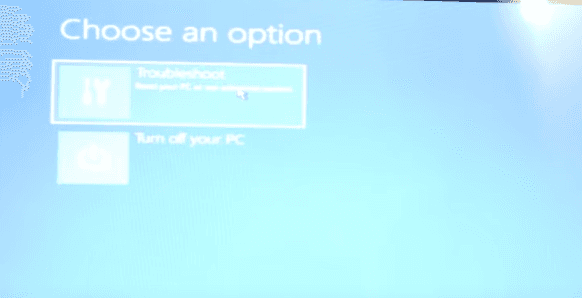
6. Select Troubleshoot
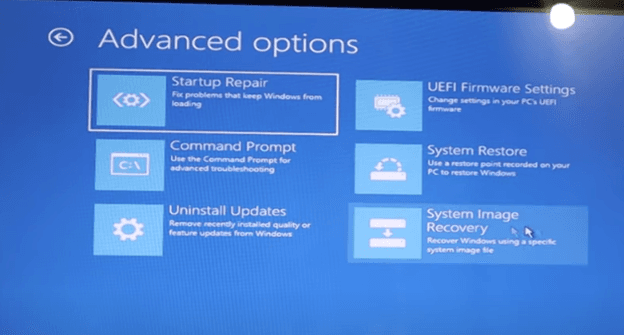
7. Select System Image Recovery
8. You will be directed with a new windows form. When ask for “Re-image Your Computer”, just click Cancel. Then click Next.
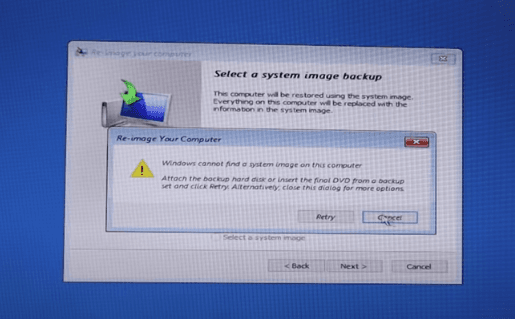
9. Select Advance.
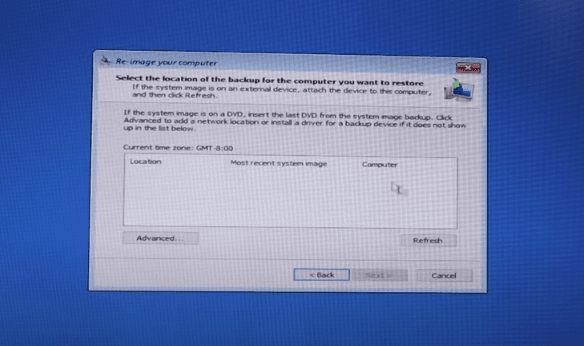
10. Then trick the computer by clicking “Install a driver”. In this way we can access the system drive of the computer. When a pop dialog appears, click OK so that it will open a Browse Directory form.
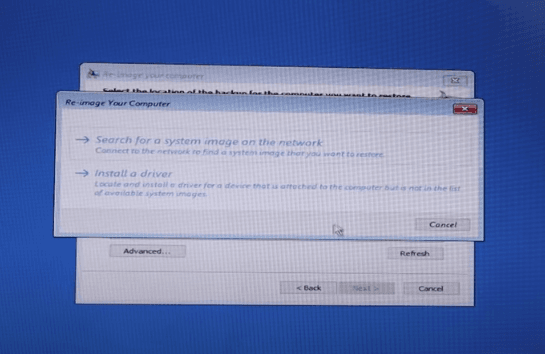
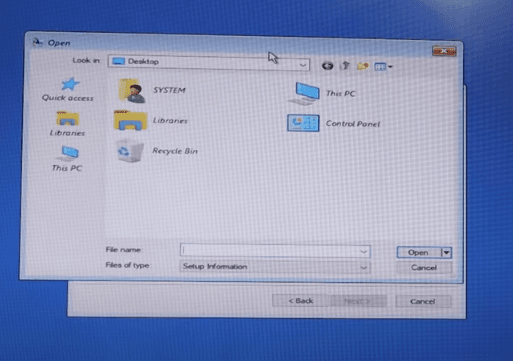
11. Now under “This PC”, select a right Drive where windows folder of your computer system is located.
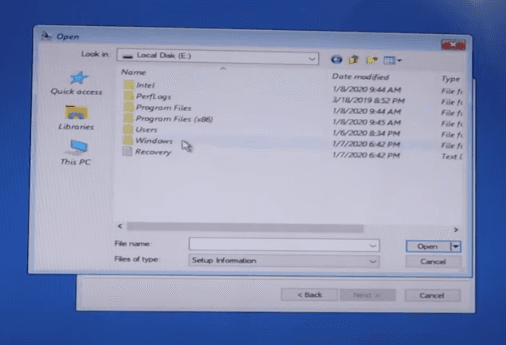
12. Browse until you find a system32 folder. And inside this folder, you have to locate and rename two files, “Magnify” and “cmd”.
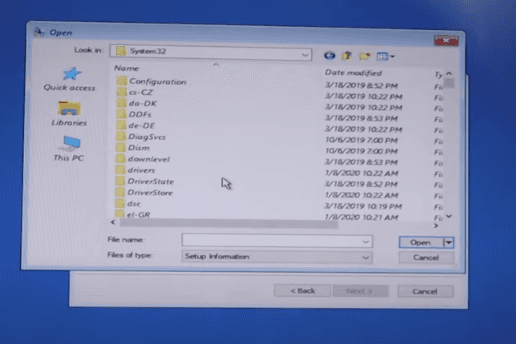
Rename the Magnify into Magnify1, so that we can restore it back later. At the same time find cmd and rename it as “Magnify”. This will trick the computer to assign system cmd.exe to open when we click the Magnifier that can be found in windows login.
13. Now close everything and shutdown the PC.
14. Open again your PC, this time let it boot normally until the windows login is seen the screen. Click the clock-like icon beside the power button that can be found in the lower right corner of the windows screen. Then select “Magnifier”.
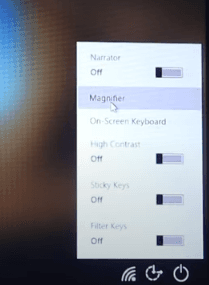
This time, the command prompt will be open.
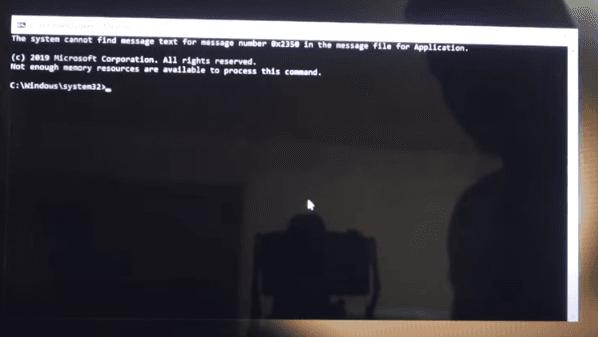
To show the list of administrator account:
> net user
To change password password of a selected account.
> net user account_name *
If there is space between account name, put it inside quotation:
> net user “account name” *
After pressing the enter button, you will be asked to type a new password. Leave it blank if you want to have no password on it.

If system error occurred during a password change, it means that the account is connected with microsoft account.

Then you have to add new account and assign it as administrator.
> net user NewAccountName /add
> net localgroup Administrators NewAccountName /add
This time it will be added successfully.
Restart the PC, and you can now login as administrator with the new account and or with a new assigned password.