
You Won't Believe How Easy It Is to Automate Your Excel Spreadsheets with Python!
April 22, 2023

Jayson Canete
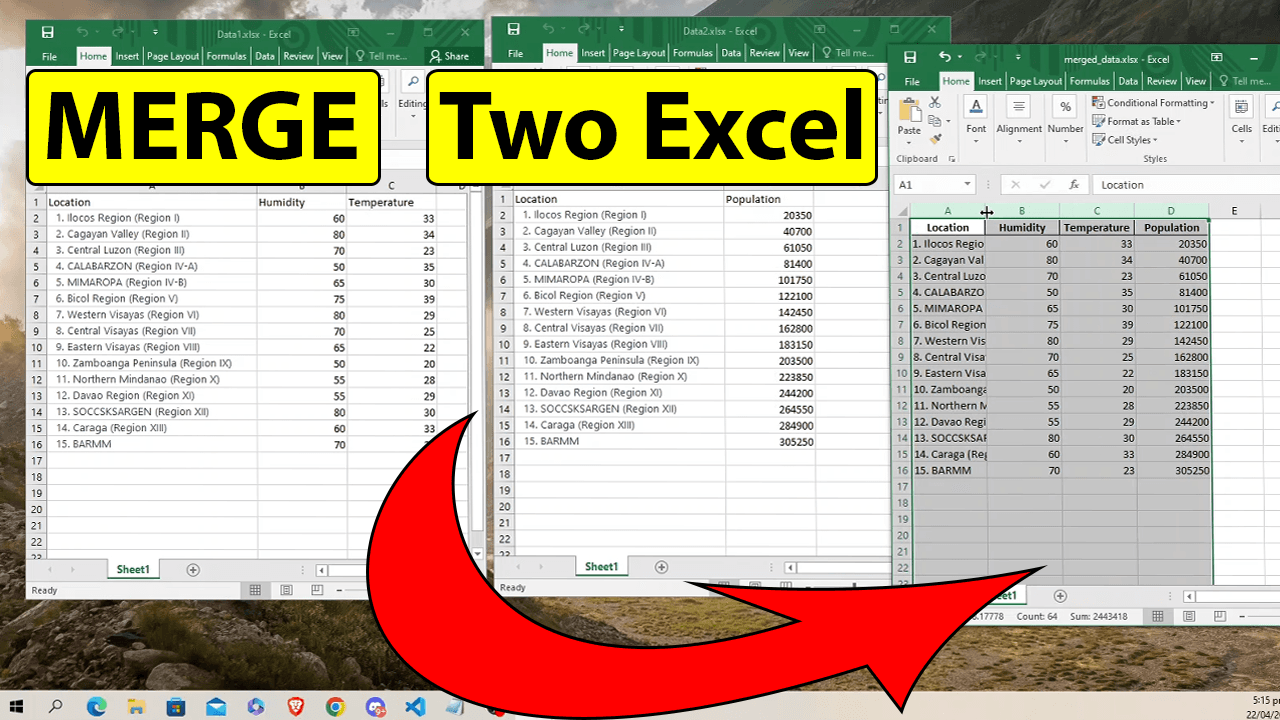
Are you tired of manually merging data in Excel spreadsheets? In this video, I'll show you how to use Python to automate this tedious task. With just a few lines of code, you can easily merge data from multiple Excel files and save yourself hours of manual work.
Python
Are you tired of manually merging data in Excel spreadsheets? In this video, I'll teach you how to use Python to automate this tedious task. With just a few lines of code, you can easily merge data from multiple Excel files and save yourself hours of manual work.
Whether you're a data analyst, accountant, or just someone who deals with Excel on a regular basis, this tutorial will show you how to streamline your workflow and become more efficient.
Download and Install Python
First of all, you have to download and install python to your computer so that you can run python script on it. Installation is very easy, just read and follow the instructions throughout the installation process.

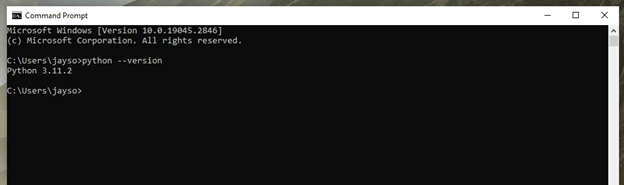
After installing the Python, check and confirm if installation is successful.
- Open command prompt
- Then on the terminal just type: python --version
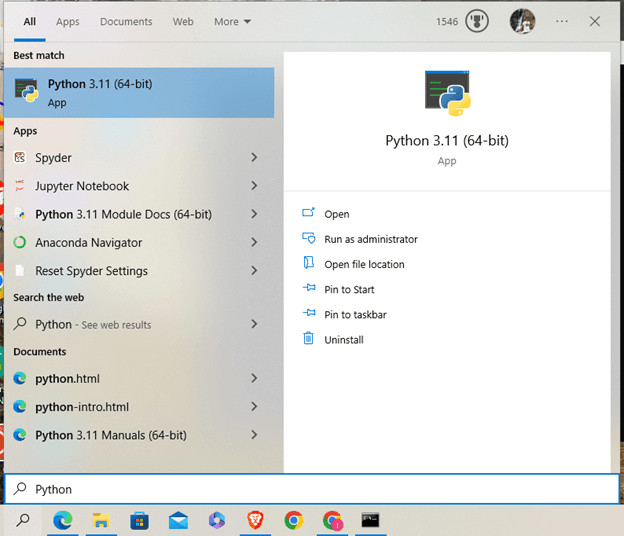
You can also check from the search bar if Python is found on the result.
For complete guide, watch this youtube tutorials:
Merge An Excel Files with Python
Now, let’s begin writing a code with python to merge two or more excel files.
Copy and paste the code below:
# START COPY HERE
# ++++++++++++++++++++++++++++++++++++++++++++++++++++++
import pandas as pd
file_path = "C:/directory/EXCEL"
# Load the first Excel file into a pandas dataframe
df1 = pd.read_excel( '{}/Data1.xlsx'.format(file_path) )
# Load the second Excel file into a pandas dataframe
df2 = pd.read_excel('{}/Data2.xlsx'.format(file_path))
# Merge the two dataframes based on a common index column
merged_df = pd.merge(df1, df2, on='Location')
# Save the merged dataframe to a new Excel file
merged_df.to_excel('{}/merged_data.xlsx'.format(file_path), index=False)
# ++++++++++++++++++++++++++++++++++++++++++++++++++++++
# END COPY HERE
Here is a snapshot of the actual code written in VSCode editor.
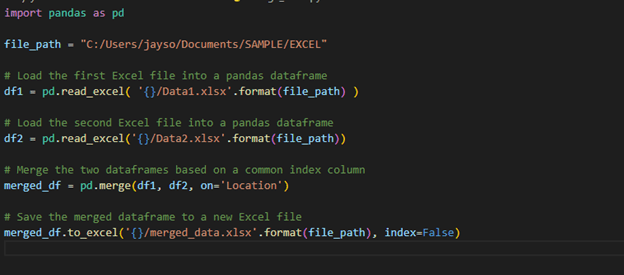
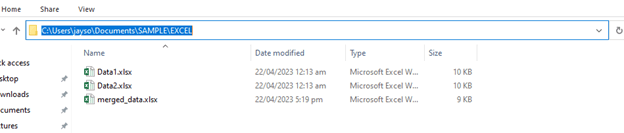
From the code, replace the line file_path = "C:/directory/EXCEL" with the directory location of your excel files. You can copy and paste the directory path by clicking the textbox on it as shown on the image below.
Also, from the code, replace the line df1 = pd.read_excel( '{}/Data1.xlsx'.format(file_path) ) of the filename of your excel worksheets. In my example, I used Data1.xlsx, it may be a different filename from yours. Same with the df2=pd.read_excel('{}/Data2.xlsx'.format(file_path)).
Now, the df1 and the df2 will be merged through the same index column. You can use any index but be sure that the index of the first excel worksheet is existing to the second worksheet. In my example, my data1.xlsx and data2.xlsx have the same index with one another.
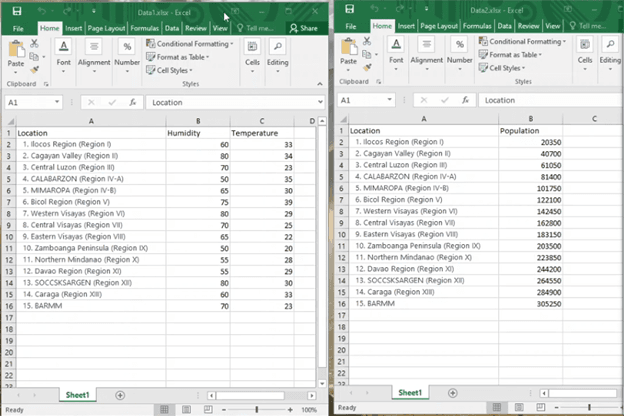
In the next line from the code, you will find merged_df = pd.merge(df1, df2, on='Location'), where you have to assign the column name of the index. Because python will use this column name as an index to merge the two files together. Be sure to replace that word “Location” with the correct name from your worksheet index.
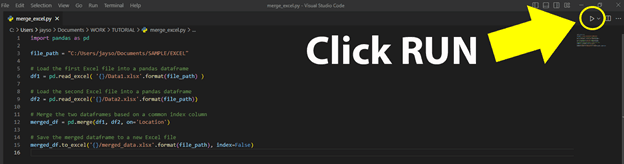
Then, you are now ready to RUN your code. Click the run button at the upper right corner of the Visual Studio Editor.
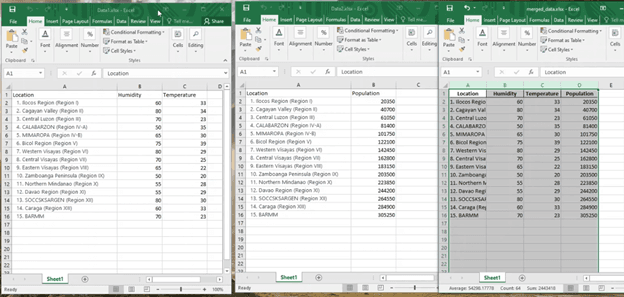
In my example, my output is shown in the image below.
You can watch the actual video tutorial here Merging Excel Worksheets with Python